In this article you will learn how to auto connect tablets to a tournament using the PID feature. This is a powerful feature that allows you to quickly auto connect many tablets to the same tournament. But before we describe the PID feature, we will cover the standard way of connecting tablets, and that is by entering the PIN-code for the tournament manually on each tablet.
Connecting the tablets to the tournament using PIN-code
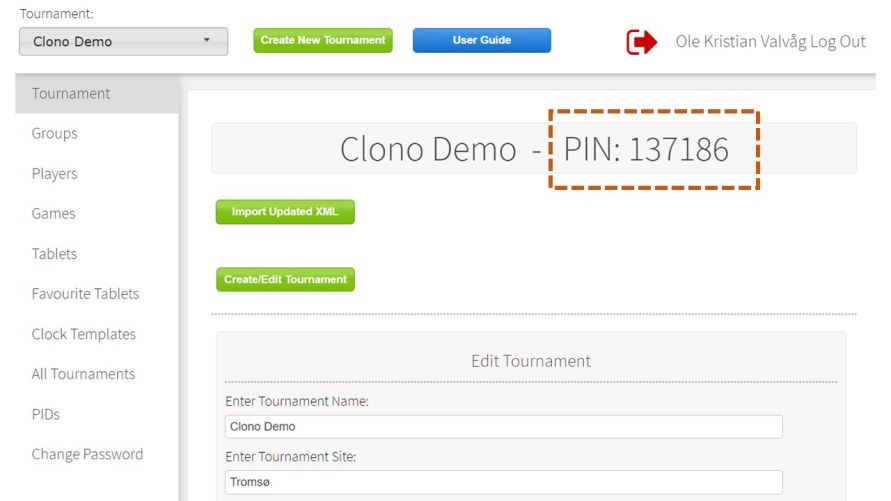
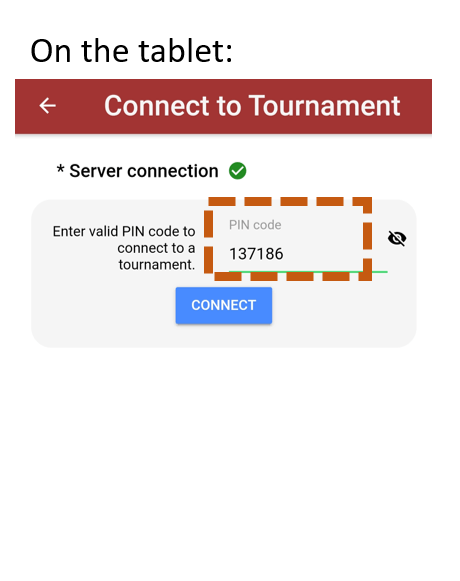
The tablets connect to tournaments using a PIN-code. A tournament automatically gets a PIN-code when the tournament is created, and the PIN-code is visible in the admin panel - tournament section. To connect the tablets, simply enter the PIN-code on the tablets.
Auto connect the tablets to a tournament using the PID feature
PID is short for "Permanent ID", and the concept is that you create one PID, and save this PID on each tablet. The PID can be routed (set to point on) to a PIN-code.
When the Clono app starts, the app looks up its PID on the server. If there is a PIN-code associated with this PID, the tablet then automatically connects to the tournament with the PIN-code associated with the PID.
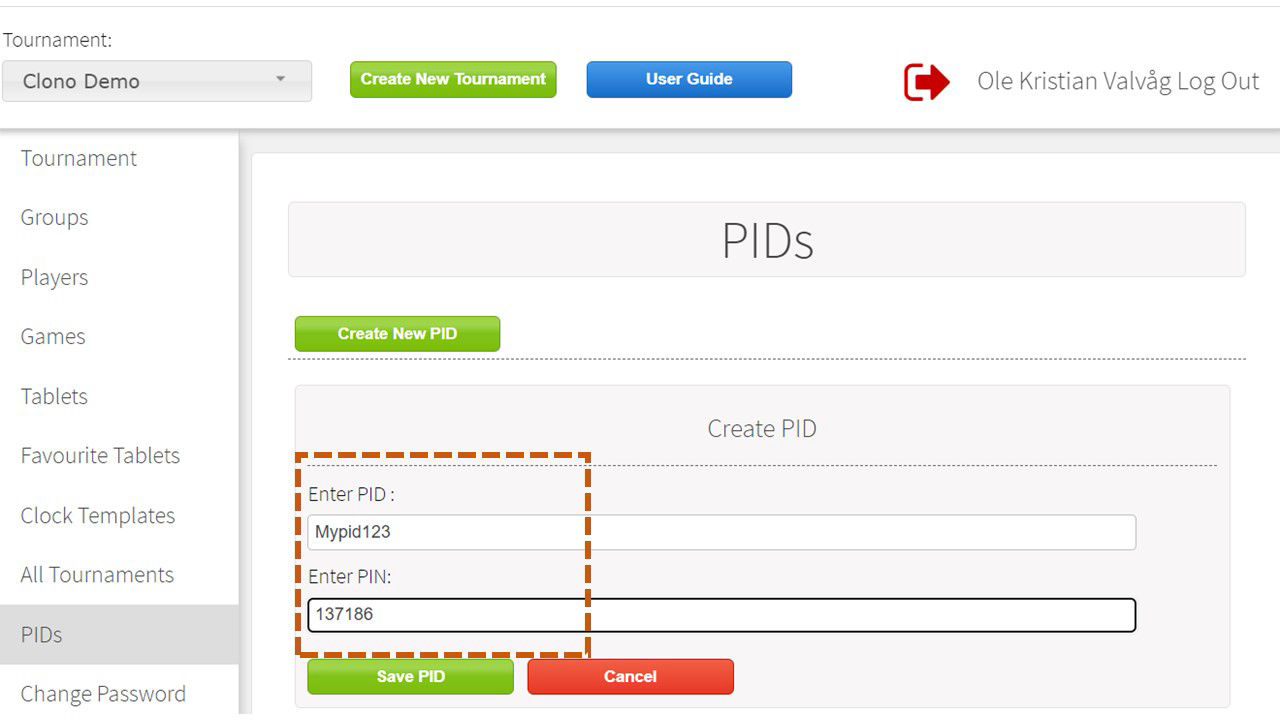
The PID is created and managed in the PID section in the admin panel.
Once you have created a PID and inserted the same PID on all your tablets, you can simply route the tablets to the tournament you want, simply by editing which PIN-code the PID points to.
Example use case
-
Create a PID in the admin panel, e.g "Mypid123" (the PID needs to have at least 6 characters and at least one letter. No special characters allowed)
-
Insert the PID "Mypid123" on all your tablets. This is done on the start page of the Clono app, under the hamburger menu
-
Create your tournament and find the PIN-code for the tournament
-
Route the PID "Mypid123" to the Pin-code for the tournament
-
For later tournaments, the only thing you need to change is which PIN-code the PID "Mypid123" points to.